Imagine trying to place a trade, but your laptop freezes just when the price moves. By the time it works again, you’ve missed the window to act. This happens to many traders, often because their equipment can’t keep up.
When trading Forex, your laptop is more than just a device, it’s how you see the market and make decisions. Having the right setup helps you stay connected and make timely decisions.
In this guide, we’ll explain what features matter most in a laptop for Forex trading, why some traders use multiple screens, and how to build a setup that works well. Whether you’re new or upgrading, you’ll find useful tips beyond the usual advice.
Let’s explore why the right tools make a difference.
Why Your Laptop Choice Shapes Your Trading Experience
Forex trading puts extra pressure on your computer compared to everyday tasks like browsing or emailing. When trading, your laptop handles many things at once, such as live prices, updating charts, news, and Forex trading platforms.
This can cause slower laptops to lag or freeze, which can make you miss chances or see wrong prices. For serious traders, a good setup is part of the business, not just a device. Investing in a reliable laptop can reduce disruptions during key market moments.
Desktops are powerful and good if you trade from one place, while laptops give you the freedom to trade anywhere. Many traders use both for the best of both worlds.
Knowing what your laptop needs for trading helps you pick the right one without wasting money.
What to Consider When Choosing Your Laptop
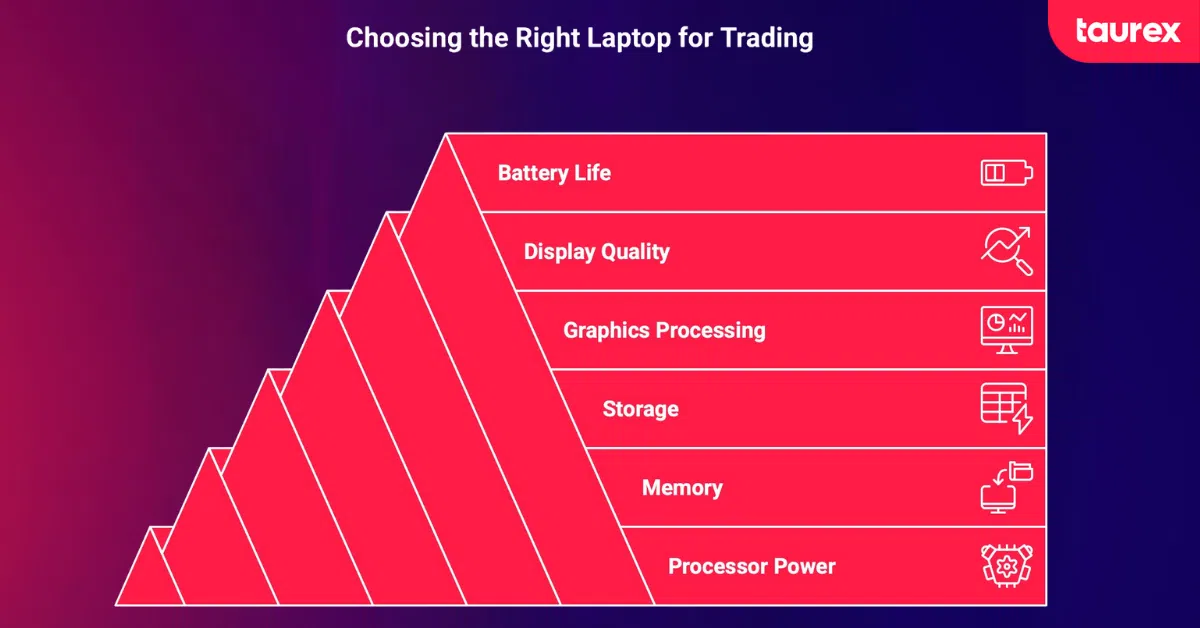
Choosing the right laptop for trading can feel confusing with so many specs to understand. Let’s focus on the most important ones.
Processor Power: Your System’s Engine
The processor is the laptop’s engine. It handles all the work your trading programs need. If you run several trading platforms, charts, and news tabs at once, you need a strong processor.
For most traders, Intel Core i7 or AMD Ryzen 7 are good starting points. If you use advanced automated systems or Forex trading robots, you can opt for faster chips like Core i9 or Ryzen 9. Newer processors also run cooler and save battery life.
Memory: How to Keep Everything Running Smoothly
RAM (Random Access Memory) determines how many applications and processes your laptop can handle simultaneously without slowing down. More space means you can spread out more charts, platforms, and analysis tools without everything grinding to a halt.
We recommend 16GB for regular trading, like running MT4 or MT5 or keeping TradingView open with multiple charts. If you use various Forex trading platforms or complex tools, 32GB is better, because laptops with lower memory capacity, for example, 8GB, usually slow down during heavy trading.
Storage: Why Speed Matters More Than Capacity
The difference between traditional hard drives and Solid State Drives (SSDs) becomes immediately apparent when you’re loading historical data for backtesting or opening large chart templates. SSDs are a must because they load data quickly. NVMe SSDs are even faster and improve how fast charts and apps open. A 512GB drive is enough for most traders, but if you save lots of data or videos, 1TB or more gives extra space.
Graphics processing: When You Need It And When You Don’t
Here’s where you can potentially save money if you understand your actual requirements. Most traders do not need a special graphics card. Modern built-in graphics handle normal trading tasks well. However, if you use multiple large monitors, a mid-range graphics card can keep everything running smoothly.
Display Quality: Your Primary View of The Markets
High-resolution displays significantly improve chart analysis capabilities. A Full HD screen (1920×1080) is the minimum for clear charts. Bigger screens (15.6 to 17 inches) help you see more details. Some traders like 4K screens for even sharper images. Higher refresh rates (like 144Hz) make charts move more smoothly, which can help fast traders react more quickly.
Battery Life: How Important is Uninterrupted Trading Access
Good battery life keeps you trading without interruption during power or internet outages. As a minimum, we would recommend 8 hours of battery life for professional trading, which will make sure you have uninterrupted access during power outages or mobile sessions. Quick charging and USB-C support are useful for topping up your battery on the go.
10 Laptops Worth Considering for Trading in 2026
When choosing a laptop for forex trading, the most important factors are performance stability, screen quality, multi-tasking ability, and how well the device fits your trading style. Here are ten strong options in 2026, from beginner-friendly machines to high-performance trading workhorses.
1. 14-inch MacBook Pro (M3 Chip)
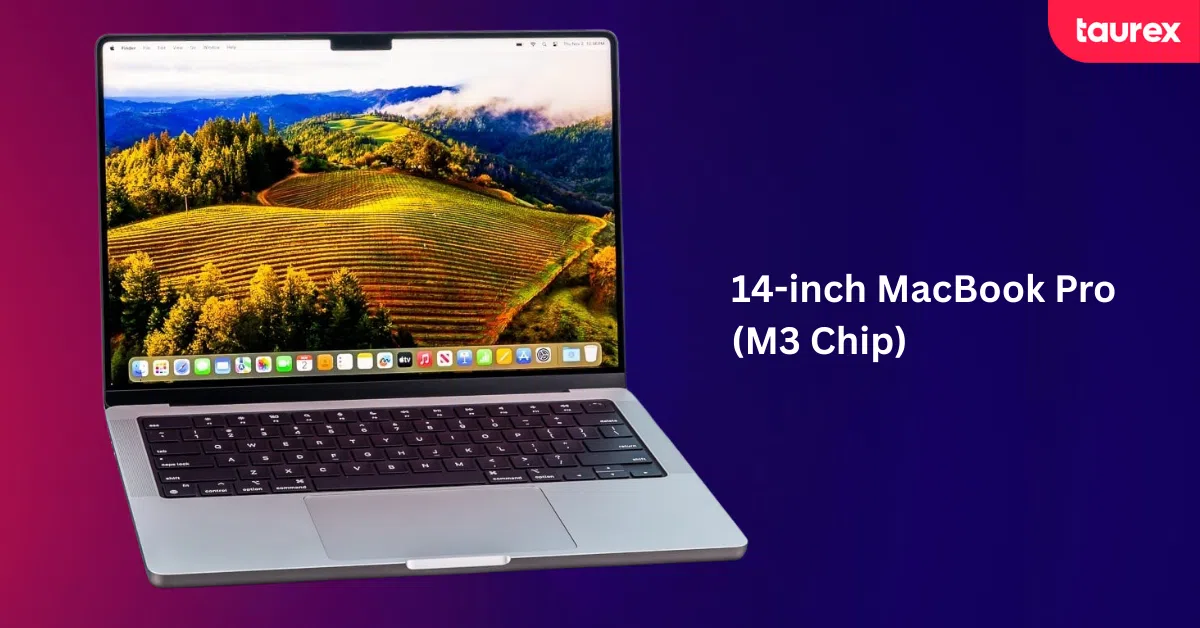
This laptop is designed for traders who want fast performance in a compact, well-built machine. It runs trading platforms smoothly while staying quiet and cool during long sessions.
Price range: £1,800–£2,200
Best for: Mac users who want power and portability
Pros:
- Excellent performance with multiple trading apps
- Long battery life for all-day trading
- High-resolution Retina display for chart clarity
Cons:
- Base model supports only one external monitor
- Expensive compared to Windows alternatives
2. Dell XPS 15 / 17
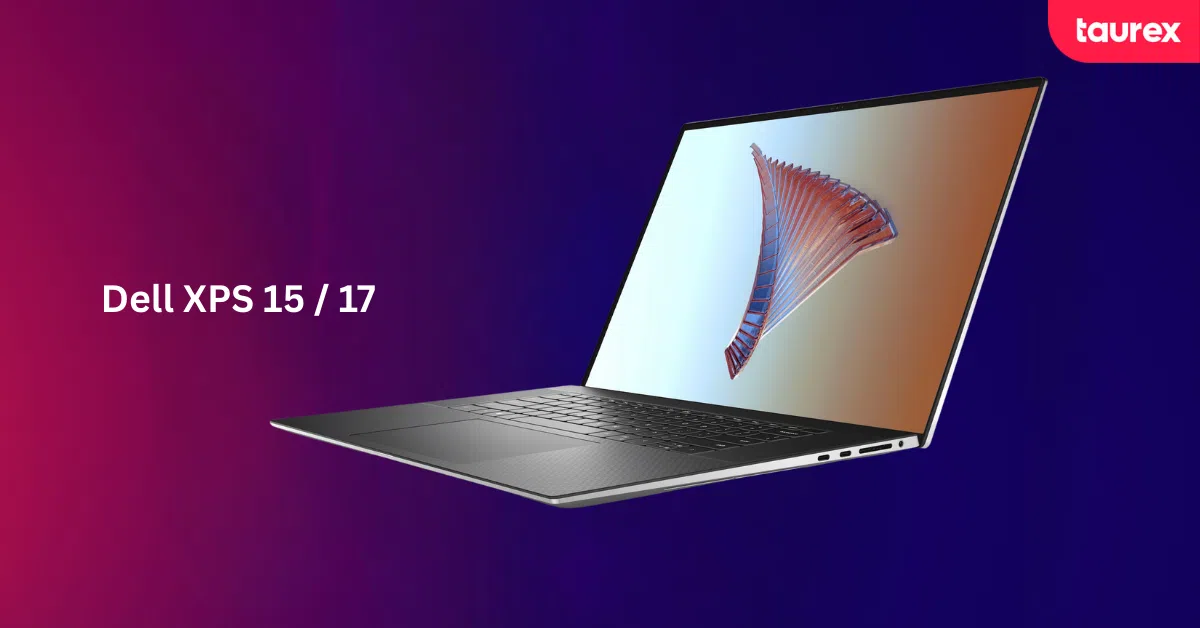
The XPS series focuses on screen space and visual clarity, which is useful when monitoring many charts at once. It’s better suited for desk-based trading than frequent travel.
Price range: £1,400–£2,600
Best for: Traders who want large, high-resolution screens
Pros:
- 4K display allows multiple charts side by side
- Premium build quality and responsive keyboard
- 17-inch version reduces eye strain
Cons:
- Heavier and less portable
- Battery drains faster under heavy workloads
3. Lenovo ThinkPad X1 Carbon
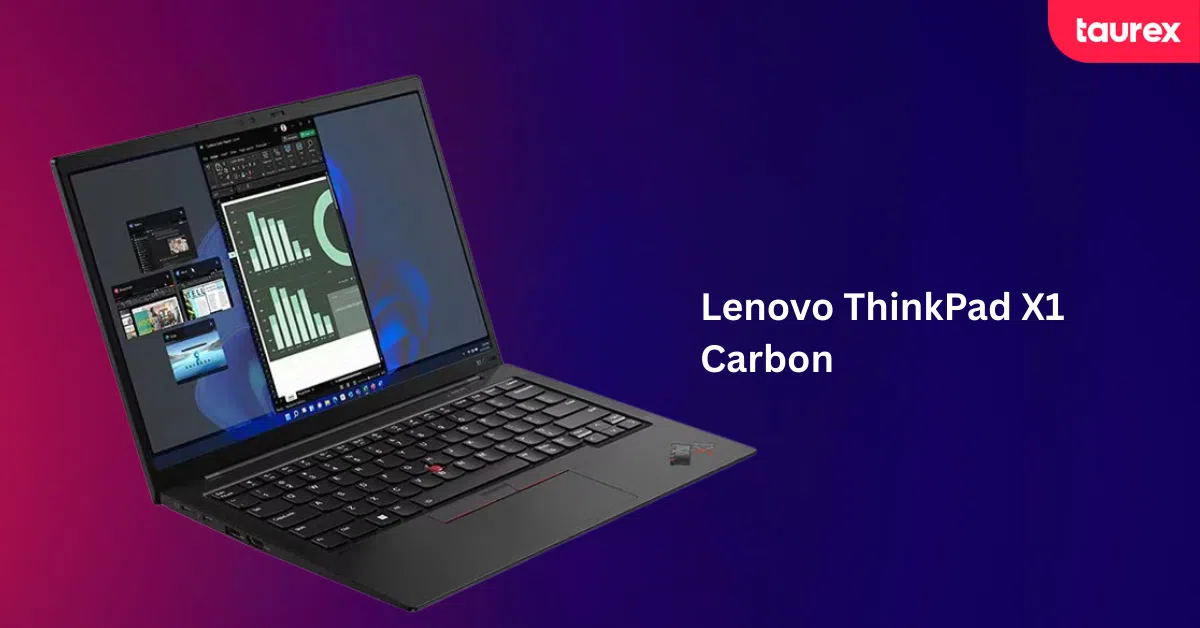
This is a business-class laptop built for reliability and daily use. It’s a good option for traders who move around often and need something dependable.
Price range: £1,500–£2,200
Best for: Mobile traders who value durability and reliability
Pros:
- Lightweight and easy to travel with
- Durable, business-grade build
- Strong security features like fingerprint login
Cons:
- Display brightness is average
- Integrated graphics limit advanced multi-monitor setups
4. ASUS ROG Zephyrus G14
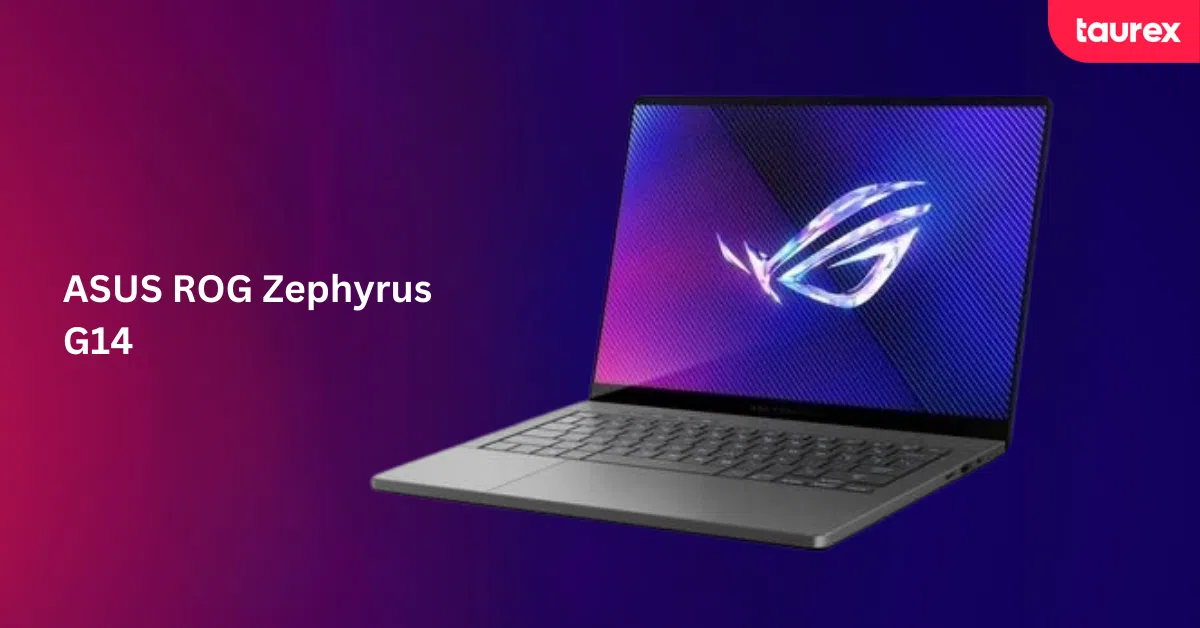
Despite its gaming roots, this laptop offers strong processing power that suits demanding trading tasks. It handles automation, multiple platforms, and external screens with ease.
Price range: £1,200–£1,800
Best for: Traders running automated or multi-monitor setups
Pros:
- Powerful CPU and dedicated GPU
- Handles heavy multitasking smoothly
- Good thermal management for long sessions
Cons:
- Fans can be loud under load
- Battery life drops during intensive use
5. Dell Inspiron 14
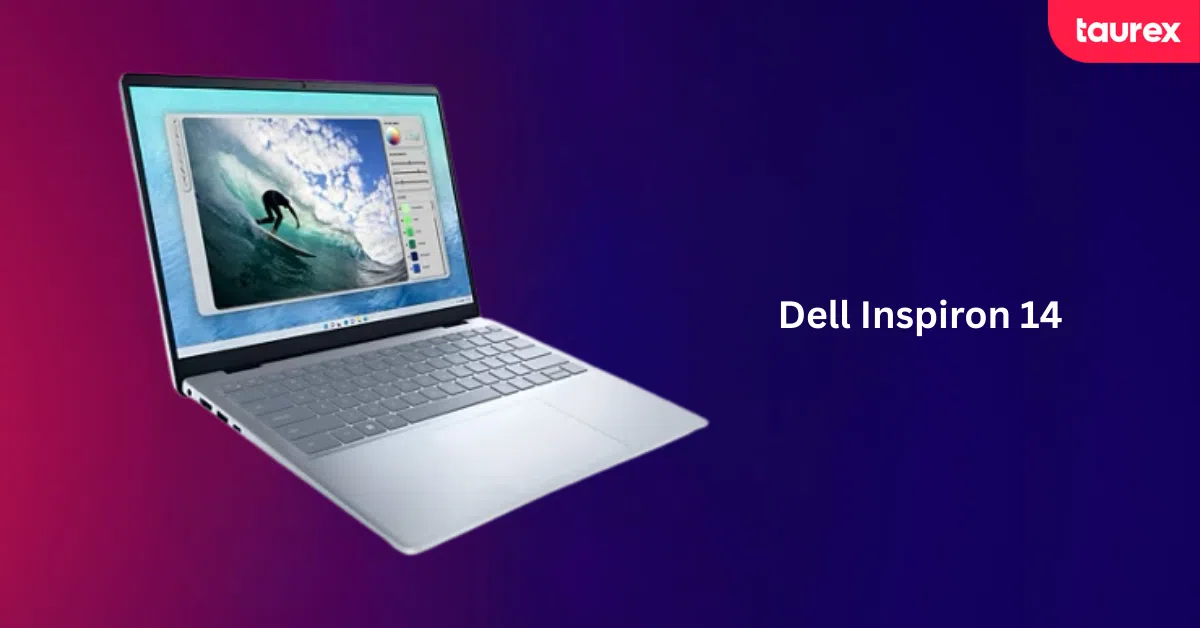
This is a straightforward, no-frills laptop for simple trading needs. It works well for learning, monitoring markets, or running a single platform.
Price range: £600–£900
Best for: Beginners or as a backup trading laptop
Pros:
- Affordable entry-level option
- Runs a single trading platform reliably
- Lightweight and easy to carry
Cons:
- Struggles with multiple platforms
- Not suitable for automated or high-frequency trading
6. HP Spectre x360 14
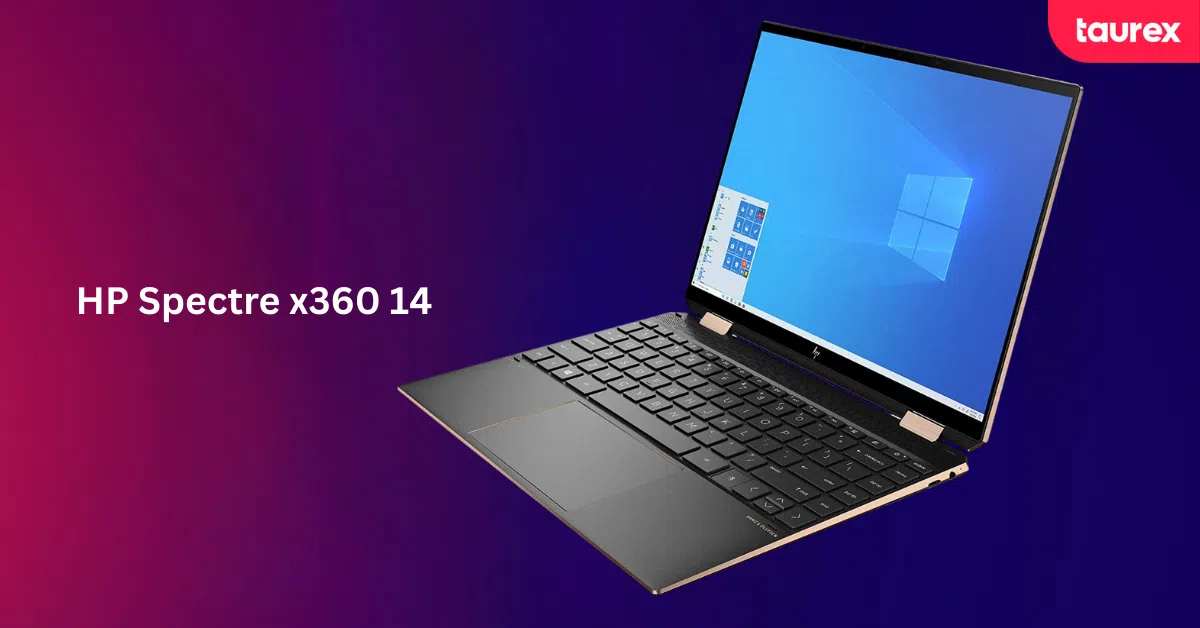
This model combines decent performance with a flexible design. It suits traders who prefer manual trading and value a compact, adaptable device.
Price range: £1,300–£1,800
Best for: Discretionary traders who value design and flexibility
Pros:
- High-quality OLED display
- Solid performance for manual trading
- Convertible design for flexible use
Cons:
- Limited ports for external monitors
- Not designed for heavy automation workloads
7. Lenovo Legion Slim 5
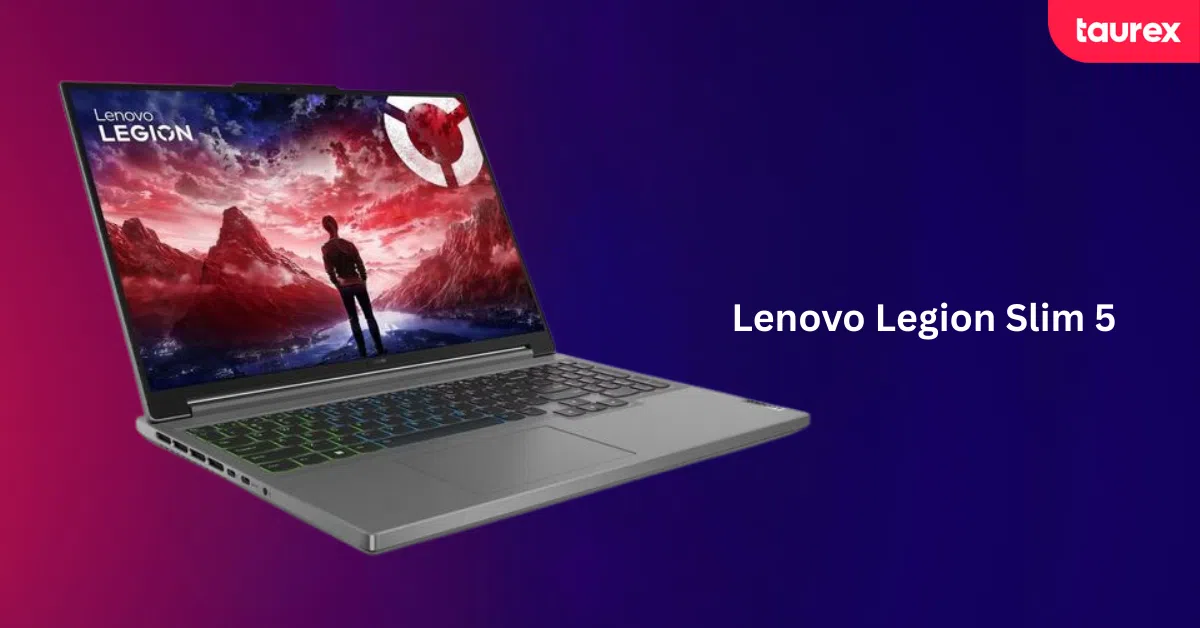
The Legion Slim offers strong performance without going into full workstation territory. It’s a practical choice for traders who want speed and stability at a reasonable cost.
Price range: £1,200–£1,900
Best for: Traders needing strong performance at a reasonable price
Pros:
- Powerful processor handles multiple platforms
- Dedicated GPU supports multi-monitor setups
- Good value for performance
Cons:
- Heavier than ultrabooks
- Gaming design may not suit all users
8. MacBook Air (M3)
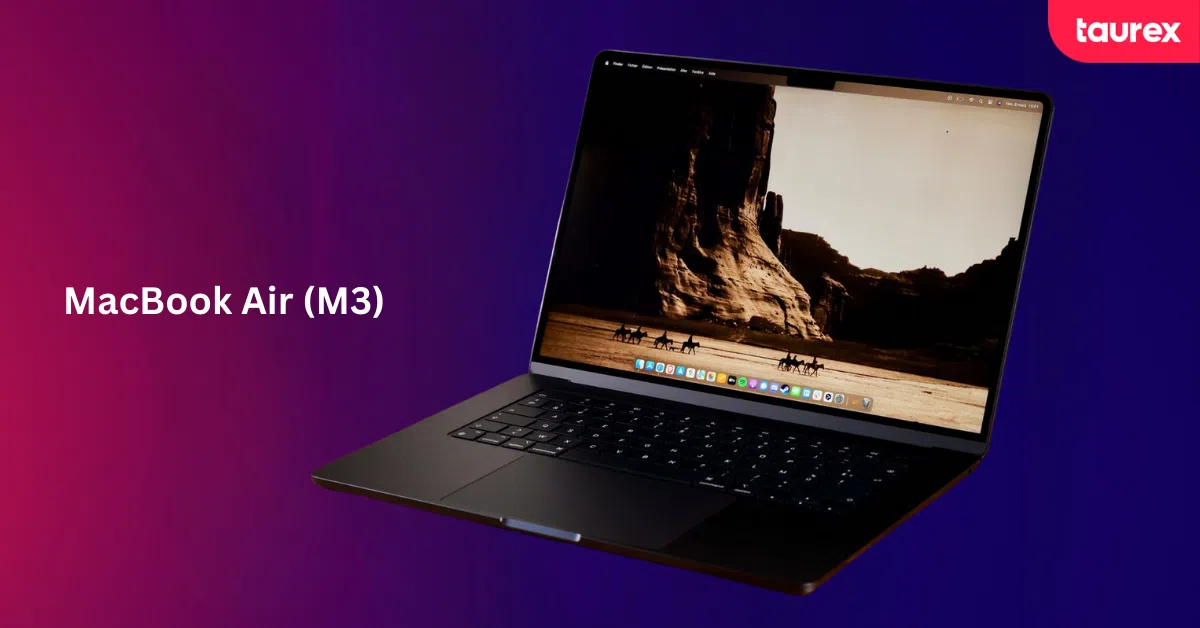
This laptop is best for traders with simple setups who prioritise portability and battery life. It handles basic charting and platform use without noise or heat.
Price range: £1,100–£1,400
Best for: Manual traders with simple setups
Pros:
- Silent, fanless operation
- Excellent battery life
- Lightweight and portable
Cons:
- Limited ports
- Not suitable for complex or multi-monitor trading setups
9. ASUS Zenbook Pro 14
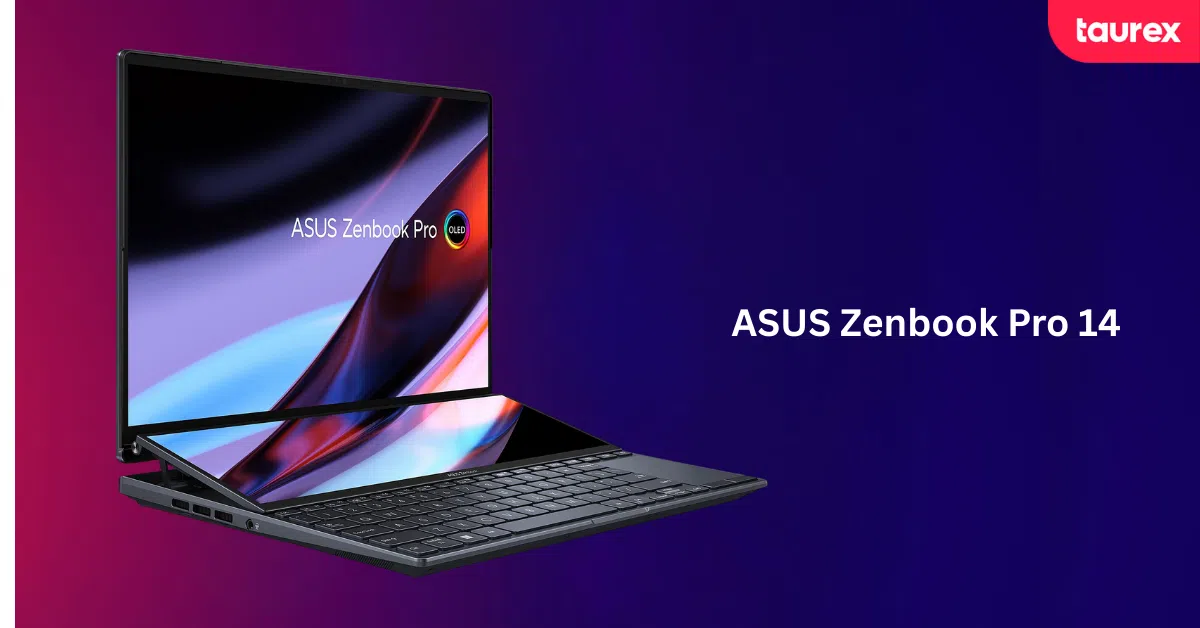
The Zenbook Pro balances size and performance for traders who want something compact but capable. It works well for multitasking without taking up much desk space.
Price range: £1,400–£2,000
Best for: Traders wanting power in a compact form
Pros:
- Sharp, high-resolution display
- Strong multitasking performance
- Portable despite high specs
Cons:
- Battery life decreases with heavy use
- Premium pricing
10. MSI Creator Z16
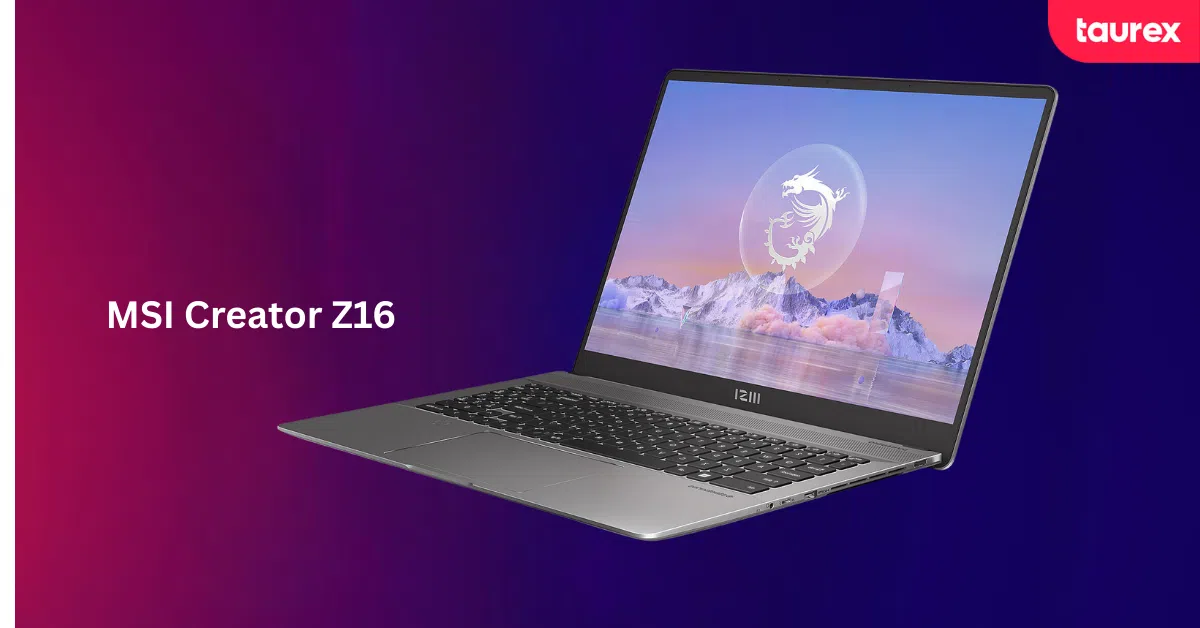
This laptop is built for sustained performance and heavier workloads. It suits traders who rely on data analysis, automation, or several external monitors.
Price range: £1,700–£2,500
Best for: Advanced traders and algorithmic trading setups
Pros:
- Excellent multi-monitor support
- High performance for data-heavy strategies
- Large, high-quality display
Cons:
- Expensive
- Shorter battery life and heavier build
List of The Best Laptop For Trading Forex: Our Top Picks
| Laptop Model | Price Range | Best For | Main Pros | Main Cons |
| MacBook Pro 14 (M3) | £1,800–£2,200 | Mac users wanting power and portability | Strong performance, long battery life, sharp display | Limited external monitor support, high price |
| Dell XPS 15 / 17 | £1,400–£2,600 | Traders needing large, high-resolution screens | Excellent 4K display, solid build, good keyboard | Heavy, battery drains faster under load |
| Lenovo ThinkPad X1 Carbon | £1,500–£2,200 | Mobile traders focused on reliability | Lightweight, durable, strong security | Average screen brightness, limited graphics |
| ASUS ROG Zephyrus G14 | £1,200–£1,800 | Automated and multi-monitor trading | Powerful CPU/GPU, handles heavy workloads | Loud fans, reduced battery life |
| Dell Inspiron 14 | £600–£900 | Beginners or backup setups | Affordable, handles basic trading | Weak multitasking, not for automation |
| HP Spectre x360 14 | £1,300–£1,800 | Manual traders who want flexibility | High-quality display, convertible design | Limited ports, not ideal for heavy workloads |
| Lenovo Legion Slim 5 | £1,200–£1,900 | Performance-focused traders on a budget | Strong processing power, good multi-monitor support | Heavier, gaming-style design |
| MacBook Air (M3) | £1,100–£1,400 | Simple manual trading setups | Silent, very portable, long battery life | Limited ports, weak multi-display support |
| ASUS Zenbook Pro 14 | £1,400–£2,000 | Compact but powerful trading setups | Sharp display, strong multitasking | Battery drops under heavy use, premium cost |
| MSI Creator Z16 | £1,700–£2,500 | Advanced and algorithmic traders | Excellent performance, strong external display support | Expensive, heavy, shorter battery life |
Multi-Monitor Setups: How to Expand Your Market View
If you visit a professional trading room, you’ll see traders using many screens. It’s not just about looking cool. More screens mean faster access to important information and better decisions.
Why More Screens Help
Traders with three or more monitors usually can make trades faster than those using only one screen. This is because they can watch many charts, alerts, and watchlists at the same time without switching tabs.
The same study found that traders spot market changes 2 to 3 minutes earlier with more screens. In Forex trading, where prices change quickly, those minutes can mean greater visibility for timely entries and exits. Data says over 70% of active traders use at least three monitors, and about 40% use four or more.
What Are Some Common Monitor Setups
- Two Monitors: A Good Start
Two screens let you put charts on one and trade orders or news on the other. Pocket Option says this is a good setup for traders who want to add more screens later. - Three Monitors: The Best Balance
Three screens give enough space without overwhelming you. Experts suggest a big 27 to 32-inch 4K screen in the middle for charts and trading, with two smaller 27-inch 1440p screens on the sides for news and watchlists.
This setup matches how many pros work. The main screen gets most attention, and the side screens show extra info without distracting you. - Six Monitors: For Professionals
Six screens arranged in two rows of three show all the data you need at once. Each screen can have a special job, like charts, different time frames, market scanners, news, and orders.
This setup is best for traders who watch many currency pairs or trade in several markets during the day. Though it costs more, having all the info visible helps make faster decisions.
How to Set Up Your Monitors Comfortably
Put your main screen directly in front of you, about an arm’s length away, with the top just below eye level. Angle side monitors inwards about 15 to 30 degrees to reduce neck movement.
Using adjustable monitor arms helps you change height, tilt, and position easily. This saves desk space and makes your setup more comfortable for long hours.
What to Know When Connecting Your Monitors
DisplayPort connections offer higher bandwidth compared to HDMI, making them essential for 4K/144Hz monitor setups. Pocket Option recommends verifying your laptop’s graphics capabilities support the intended number of external displays before purchasing monitors. Some laptops support only one or two external displays regardless of available ports, limiting expansion options.
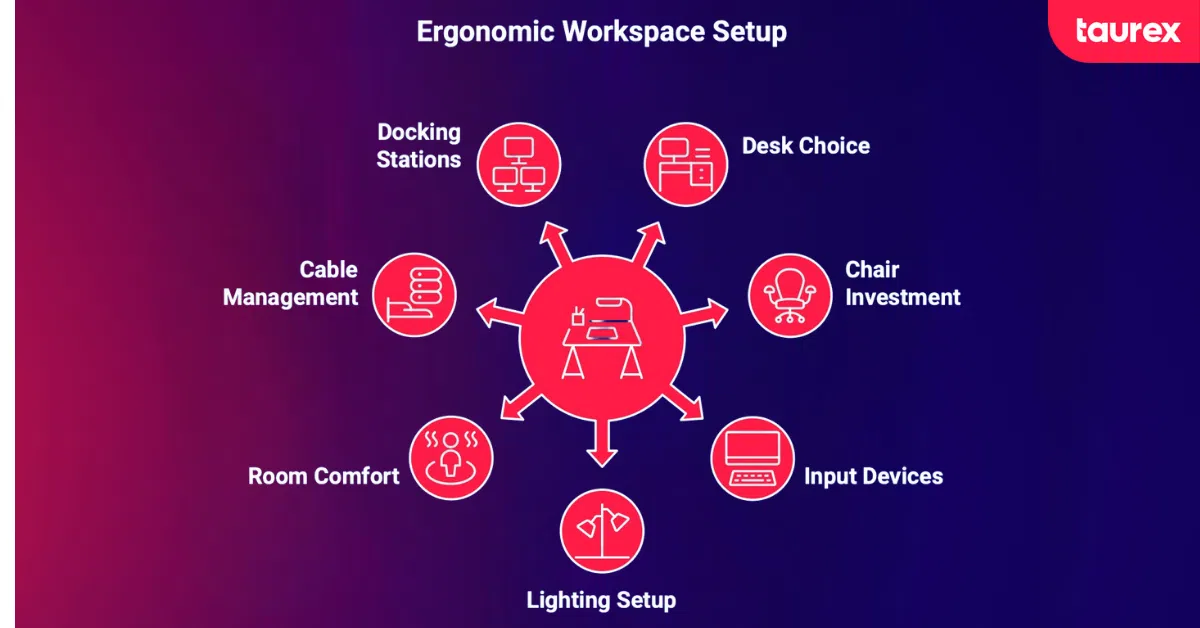
How to Build an Ergonomic Workspace That Supports Long Sessions
Forex markets run 24 hours a day, five days a week. Trading often means sitting for hours while you watch the markets, wait for setups, and make decisions. Having a good workspace helps your health and your focus.
-
Choose the Right Desk
A desk that lets you switch between sitting and standing is best. Experts suggest desks at least 30 to 36 inches deep so you have enough space for your monitors and can keep a good distance from the screens. Changing your position during the day helps your posture, blood flow, and energy. Traders say they feel less tired and stay more focused when they don’t sit all day. You don’t need an expensive desk right away. A sturdy desk with enough space for your monitors and equipment works well, especially if you’re building your setup step by step.
-
Invest in a Good Chair
An ergonomic chair with support for your lower back, adjustable armrests, and a seat height that is important to avoid pain during long sessions. Back pain is a common problem for office workers. Investing in a quality chair between £300 and £1,200 may help reduce discomfort and support long sessions, while keeping you productive. Look for chairs where you can adjust the lumbar support, armrest height and angle, and seat depth. Good build quality helps the chair stay comfortable for years.
-
Buy Good Keyboards, Mice, and Input Devices
Mechanical keyboards give a tactile feel that many traders like for quick and sure typing. Precision mice help you move the cursor exactly where you want, which is important when working with detailed charts and placing trades. Choose a keyboard with keys that feel comfortable for your hand size and typing style.
For your mouse, pick one that fits your grip (whether you use your palm, claw, or fingertips) and lets you adjust sensitivity for fine control. Good input devices make trading easier, and your hands get less tired during long hours, which helps you stay active.
-
Set Up a Lighting That Protects Your Eyes
Good lighting helps your eyes be less strained. Use desk lamps with adjustable brightness to see charts clearly. Placing a soft light behind your monitors helps your eyes by lowering the contrast between the bright screen and the dark room.
Arrange your desk so windows don’t shine directly on your screens. If you can’t control sunlight, use anti-glare filters.
Many traders like cooler white light (5000-6500K) during active trading to stay alert and warmer light (3000-4000K) for slower tasks like research.
-
Keep Your Room Comfortable
Keep your room temperature between 20 and 22°C (68-72°F) for comfort and focus. If you trade at home with family or roommates, noise can be a problem. Noise-cancelling headphones help block distractions. Adding soft materials to walls can lower background noise, too.
-
Tidy Up Your Cables
Messy cables can distract you and make it hard to change your setup. Use cable trays, ties, or sleeves to keep wires neat and out of sight but easy to reach. Good cable management also prevents tripping and reduces risks like overheating or damage. Take time to organise your cables when setting up so you don’t have a bigger mess later.
-
Get Docking Stations
USB-C docking stations let you connect your laptop to many devices using just one cable. They can hook up multiple monitors, wired internet, keyboards, and other tools all at once. A good docking station turns your laptop into a desktop-like setup while still letting you take it with you when you travel.
Look for docks that support two or three monitors, charge your laptop, and include Ethernet for stable internet. Make sure the dock works with your laptop model and supports the screen resolutions and refresh rates you need. Some docks have limits on display quality, even if they have many video ports.
Building Your Foundation for Successful Trading
Choose a laptop that fits your trading style and needs. Good gear costs money but minimises disruption and supports your focus.
Start with a solid laptop, then add monitors, backups, and ergonomic tools as you grow. Your setup should work smoothly and help you focus on trading, not technical problems. Fix your weakest equipment first and improve little by little. With the right tools, you can focus on learning, planning, and trading well.
Want to test your new setup in real market conditions? Open a Taurex demo account, practise your strategies, and explore the platform in a risk-free environment, before committing to a live trading experience.
New to the process? Our guide on how to open a Forex trading account walks you through the steps from registration to verification.
Risk Disclosure: Trading involves significant risk, including potential loss of principal. Past performance does not indicate future results. The value of investments may fluctuate, and you may receive back less than your original investment. All content provided is for educational purposes only and does not constitute financial advice or trading recommendations.
FAQs
Can I trade Forex on a regular laptop?
Yes, if it has at least an Intel Core i5 or Ryzen 5, 8GB RAM, and SSD storage. But for smoother multitasking with multiple platforms and charts, 16GB RAM and a Core i7 or Ryzen 7 processor are recommended. Adding £300-500 to your budget can support smoother performance and reduce lag during multitasking.
Do I need multiple monitors for trading?
Not required, but three or more monitors can improve trade speed, letting you see charts, news, and orders all at once. Starting with one external monitor gives a noticeable boost in efficiency.
How much should I budget for my trading setup?
Basic setups cost around £1,500-£2,500 with a laptop, one monitor, a chair, and backup power. Mid-range setups go from £3,000-£5,000, and professional setups exceed £6,000. Build your setup gradually as your trading grows.
Is a gaming laptop good for trading?
Yes, because they offer strong processors and cooling to handle multiple platforms. Just avoid paying extra for high-end graphics you won’t use. Battery life and design might be less suited for professional settings.
Do I need a UPS for trading?
Yes, a UPS protects your gear from power outages and voltage spikes, giving you 15-20 minutes to close trades safely. Entry-level units cost around £100-150.
How often should I upgrade my trading laptop?
Typically, every 3-5 years, or sooner if performance slows or new software demands more power. Upgrade proactively to maintain smooth trading and preserve resale value.